

The safe way to manage multiple LinkedIn accounts is to give each profile its own persistent, isolated session, complete with a dedicated fingerprint and IP address, and to stay under LinkedIn's activity limits at all times. Practical options include browser profiles, cloud or fingerprint isolation tools, and assigning single accounts to single people, with a unified inbox tying everything together. The real danger isn't a single mistake. It's LinkedIn's graduated enforcement system, which quietly reduces visibility before it locks you out entirely.
TL;DR:
- Using separate fingerprinted browser profiles with dedicated proxies is essential for managing more than three to five LinkedIn accounts securely.
- Gradual warm-up and spreading connection requests across multiple profiles help avoid triggering LinkedIn's graduated restrictions.
- Assigning each account to a single person, avoiding overlapping outreach, and maintaining a unified inbox reduces detection risks and operational chaos.
- When accounts get flagged, immediate suspension of activity and verifying identity are crucial before attempting to recover or appeal.
- For larger scales, investing in purpose-built isolation tools or managed services offers better security and efficiency than local solutions.
Table of Contents
- How do you manage multiple LinkedIn accounts safely?
- How do you set up browser profiles for separate LinkedIn accounts?
- What is fingerprint isolation and do you need a proxy for each account?
- How many connections can you send per day without getting flagged?
- How should agencies delegate LinkedIn account access?
- What happens if LinkedIn flags one of your accounts?
- How do you access, merge, or close a second LinkedIn account?
- What Wing Assistant's Numbers Show About Creative Output at Scale
- A quick decision checklist for choosing your method
- Let Wing Assistant Handle the Creative While You Handle the Accounts
- Sources
How do you manage multiple LinkedIn accounts safely?
Every method for handling multiple LinkedIn profiles trades off convenience against risk, and picking the wrong one for your scale is the most common way agencies get burned. A solo consultant running a personal brand and a client account has very different needs than a 12-person agency juggling 40 client profiles.
Here's how the main approaches stack up:
- Browser profiles (Chrome/Edge): Free and built into the browser. Good for one or two accounts you personally control, but IP overlap still links accounts if you're not careful.
- Separate physical devices: Genuinely isolates fingerprints, but doesn't scale past two or three accounts before it becomes an equipment management headache.
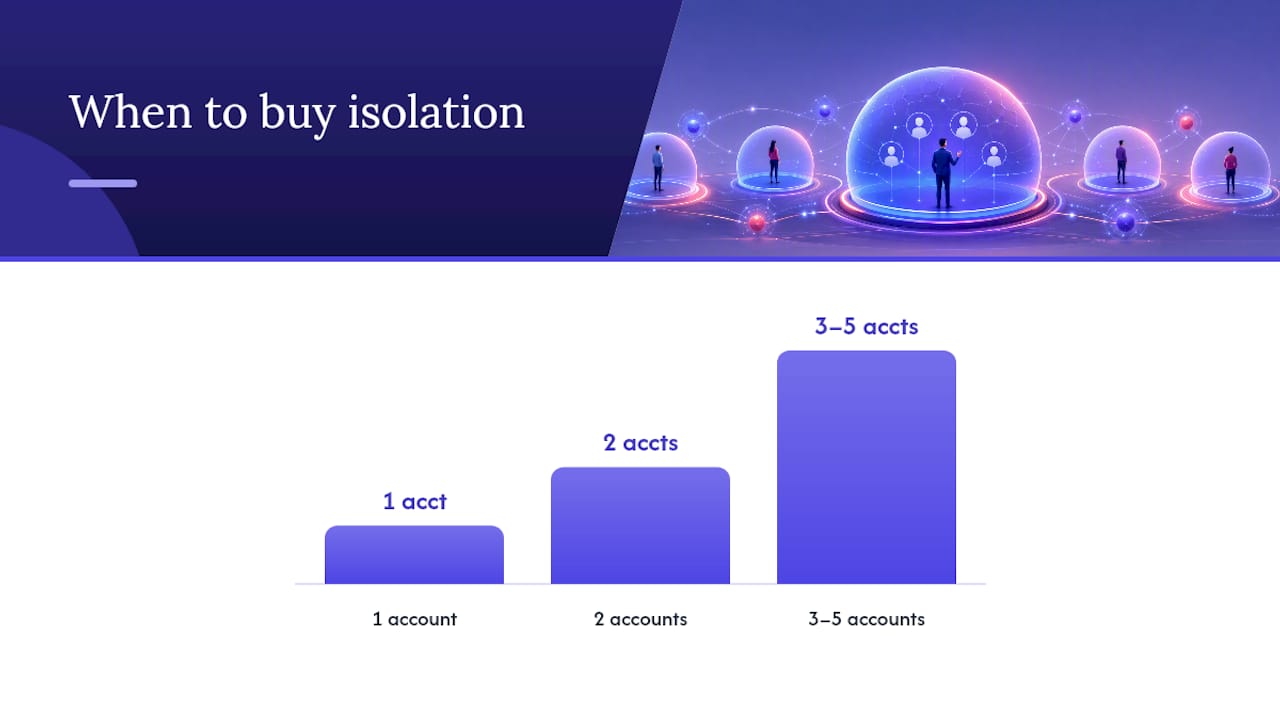
- Cloud browsers / fingerprint isolation tools: Purpose-built for running many persistent sessions with unique fingerprints and proxies. The right call once you pass roughly three to five accounts.
- One person per account: The simplest safety rule in the entire playbook. Assigning each profile to a single human eliminates the cross-account behavioral overlap that trips LinkedIn's detection the fastest.
- Agency platforms with unified inboxes: Built for scale. They centralize replies and tracking across dozens of sender profiles so nobody replies twice or misses a lead, though they come with subscription costs and a learning curve.
The pattern is consistent: local, free methods work at small scale, and purpose-built isolation or agency tooling becomes worth the cost the moment client accounts multiply. Multiple practical methods exist, and none of them is universally right. The one that matches your headcount and account count is the right one.
How do you set up browser profiles for separate LinkedIn accounts?
Browser-level isolation is the starting point for almost everyone, and it's worth doing correctly rather than treating it as a shortcut. Chrome and Edge both support fully separate profiles, each with its own cookies, cache, extensions, and saved logins, which means one account never bleeds into another's session data.
Here's how to set it up properly:
- Open your browser's profile menu and create a new profile for each LinkedIn account you manage.
- Sign in to that account inside its dedicated profile only, and let the browser save the credentials there.
- Disable or avoid installing automation extensions inside these profiles. They're a common trigger for the fingerprint anomalies LinkedIn watches for.
- Leave each profile signed in persistently rather than logging in and out repeatedly. Session churn looks more suspicious than a stable, always-on login.
- Label each profile clearly (client name, account purpose) so nobody on your team accidentally posts from the wrong window.
Browser profiles solve the cookie and extension problem cleanly, but they don't solve the network problem. If five profiles all connect from your office Wi-Fi, LinkedIn can still correlate them by shared IP address and browser fingerprint, even though each one looks clean on the surface.
Pro Tip: Keep a simple spreadsheet mapping profile name to account owner and last login date. It sounds basic, but it's the fastest way to catch a stale, forgotten profile before it becomes a security flag.
Your daily checklist should be short: never open two client accounts in the same profile, never mix personal and client logins, and check that each profile still shows a persistent, active session before you start outreach for the day.
What is fingerprint isolation and do you need a proxy for each account?
Fingerprint isolation means giving each LinkedIn profile a browser environment that reports different hardware and software signals, so LinkedIn can't fingerprint two accounts as coming from the same machine. Pair that with a dedicated residential proxy per account, and you've closed the two biggest gaps that browser profiles leave open on their own.
This matters because LinkedIn correlates accounts through browser fingerprint and IP data far more than through anything you post. Two accounts logging in from the same IP address, on browsers reporting identical screen resolution, timezone, and installed fonts, look connected even if the humans behind them have never met.
Setting this up properly involves a few consistent steps:
- Provision a separate browser profile or virtual environment for each account inside your isolation tool.
- Attach one dedicated, sticky residential proxy to that profile permanently. Don't rotate IPs mid session.
- Authenticate once, then let the session persist rather than re-logging in on every use.
- If a teammate needs access, share the session itself through the platform's access controls, never the raw password.
- Log which proxy and profile pair belongs to which account somewhere your team can check before onboarding a new hire.
Pro Tip: Treat a rotating proxy the same way you'd treat a stranger logging in from a new city every day. LinkedIn reads that as suspicious even if your intentions are clean, so a sticky, dedicated IP per account beats a cheap rotating pool every time.
Whether you need a paid isolation product depends almost entirely on account count. One or two personal accounts rarely justify the expense. Once an agency crosses somewhere around three to five client accounts, the marginal cost of an isolation platform usually comes in under the labor cost of babysitting local browser profiles and the risk cost of a client account getting restricted mid campaign.
How many connections can you send per day without getting flagged?
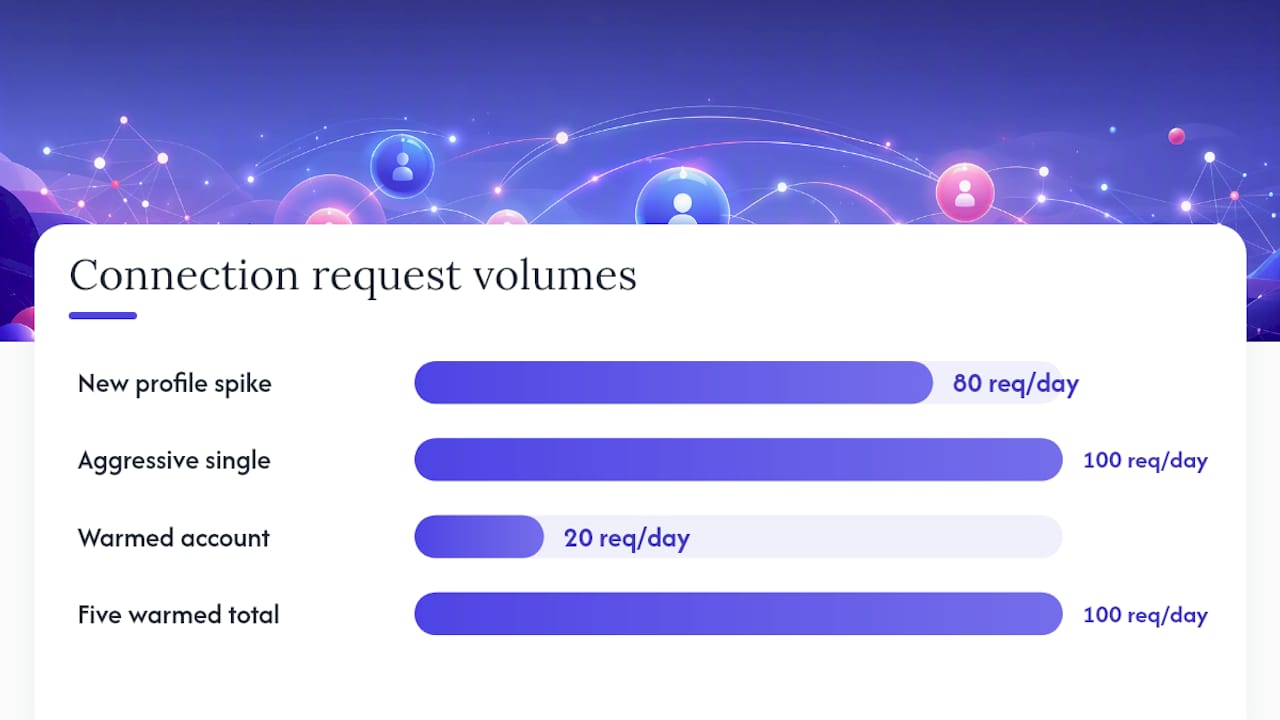
LinkedIn doesn't publish a fixed daily cap, but it does apply graduated restrictions rather than an instant ban, starting with reduced visibility and escalating toward temporary lockouts that require identity verification. A brand-new profile that suddenly sends 80 connection requests on day one is the single fastest way to trip that system.
A conservative warm-up schedule looks like this:
- Week 1: low single-digit connection requests per day, minimal messaging, mostly profile views and organic engagement.
- Week 2: moderate increase in connection requests per day, light messaging to accepted connections only.
- Steady state (after week 2): a moderate daily connection request volume is recommended for most warmed-up accounts, according to practitioner guidance on scaling outreach.
Scaling safely doesn't mean pushing one account harder. It means spreading volume across more warmed-up profiles, each staying inside its own conservative cap, rather than testing how far a single account can be pushed before LinkedIn notices. Five accounts sending 20 requests a day each will almost always outperform one account sending 100, both in deliverability and in account survival.
Assigning each profile its own unique lead list matters just as much as the daily cap. Overlapping lead lists across profiles are one of the most common causes of duplicate outreach, where the same prospect gets pinged by two "different" people from the same company within days of each other, which looks bad to the prospect and to LinkedIn's spam detection alike.
How should agencies delegate LinkedIn account access?
Agencies running client accounts need a structure that survives staff turnover, client audits, and the occasional 2 AM "who's logged into this account" panic. That structure starts with clearly defined roles.
Three roles cover almost every agency setup:
- Owner: Usually the client or agency principal who holds ultimate account authority and is named on the LinkedIn profile itself.
- Session operator: The team member actually sending messages and connections day to day, working inside a delegated session rather than the owner's raw login.
- Reviewer: Someone who audits activity logs, checks for overlap between accounts, and flags anything that looks off before it becomes a restriction.
Session delegation is the piece most agencies get wrong early on. Sharing sessions instead of passwords keeps the account traceable to its true owner while still letting an operator do the daily work, and it means a departing employee doesn't walk out the door with a client's actual credentials.
Making this work day to day comes down to a short list of habits:
- Grant session access through your isolation or agency platform's built-in sharing controls, never through a shared password document.
- Revoke access immediately when a team member rotates off a client or leaves the company.
- Route every reply through a unified inbox so two operators never respond to the same prospect from two different profiles.
- Sync the CRM after every outreach batch, not once a week, so the reviewer can catch duplicate targeting before it repeats.
A unified inbox and sender-pool architecture is what makes this manageable once you're past a handful of accounts. Without it, agencies end up with team members logging in and out of a dozen browser tabs. This is exactly the kind of erratic session behavior that raises LinkedIn's suspicion in the first place.
What happens if LinkedIn flags one of your accounts?
LinkedIn rarely bans an account outright on the first offense. The more common path is a quiet reduction in reach, followed by an in-app warning, and only then a temporary restriction that asks for identity verification before you can keep using the account.
If a profile gets flagged, take these steps in order:
- Stop all outreach activity immediately. Continuing to send requests during a warning period accelerates escalation.
- Complete whatever verification LinkedIn requests. This often means a government ID upload or a phone/email confirmation.
- Use the in-app appeal process if the restriction seems disproportionate, and be specific about what activity triggered it.
- Review whether the account was sharing an IP, device, or browser fingerprint with another active profile, since that overlap is the most common root cause.
Pro Tip: If you're running any automation, even something as simple as a browser extension that auto-clicks connection buttons, that's very often the actual trigger. Manual-paced engagement inside an isolated session is far safer than any tool that injects clicks or scripts into the LinkedIn interface itself.
The best prevention is boring consistency: the same device, the same IP, the same browser fingerprint, every single day, for every account.
How do you access, merge, or close a second LinkedIn account?
These three tasks come up constantly once someone's managing more than one profile, and each has a specific, low-risk way to handle it.
- Accessing a second account you own: Log out of your current session, or better, open the dedicated browser profile you've already set up for that account, and sign in with its saved credentials rather than switching accounts mid-session on a shared login.
- Merging duplicate accounts: LinkedIn doesn't offer a true merge feature. Manually export connections and content from the account you're closing, then rebuild the important relationships and posts on the account you're keeping. Expect to lose post engagement history and some connections who don't accept a fresh request.
- Closing an old account safely: Export your connections list and any content you want to keep first. LinkedIn's account settings include a data export tool for this. Only close the account after confirming the export completed, since there's no recovery window once it's gone.
What Wing Assistant's Numbers Show About Creative Output at Scale
Multi-account outreach only works if the content behind it doesn't go stale, and that's usually the part agencies underinvest in. Wing Assistant's dedicated virtual assistants turn a single raw video into multiple ad variations in 24 to 48 hours, which is the same window most agencies spend just waiting on a single revision from a traditional creative shop.
The operational logic connects directly back to multi-account hygiene: the hours a team saves not managing creative bottlenecks are the same hours that should go into session logging, proxy management, and reviewing outreach overlap across client profiles. Creative fatigue and account fatigue are both solved the same way, by treating the underlying process as infrastructure rather than an afterthought.
A quick decision checklist for choosing your method
Running one or two personal profiles? Stick with free browser profiles and a strict warm-up schedule. It's overkill to pay for isolation infrastructure at that scale, and the operational risk is low if you follow the daily caps.
Managing three to five client accounts changes the math. That's the point where a cloud or fingerprint-isolation tool usually earns back its cost in saved hours and avoided restrictions. The single habit that matters more than any tool purchase: one persistent session per account, tracked in a unified inbox, so nothing gets duplicated and nothing gets forgotten.
Beyond five or six accounts, or the moment you're managing other people's client relationships, bring in a managed service rather than trying to hold the whole system together with spreadsheets and good intentions.
— James
Let Wing Assistant Handle the Creative While You Handle the Accounts
Multi-account discipline solves one half of the scaling problem. The other half is making sure the content going out through all those profiles doesn't get stale after the second week of a campaign. That's where a traditional agency workflow usually breaks down, taking days to turn around a handful of new ad variations while your outreach volume keeps climbing.
If your team is already juggling proxies, session logs, and unified inboxes across a dozen LinkedIn profiles, the last thing you need is another bottleneck sitting in the creative queue. Check out the creative fatigue diagnostic and ad variation service to see how fast a fresh batch of ad variations could be in your hands.