

Burned-in captions are text permanently rendered into your video frames during export. They show up on every device and platform by default, but you can't toggle them off, resize them, or edit the wording without re-rendering the whole clip. Use them for short-form, autoplay-muted social content. Don't rely on them alone for accessibility or for reaching non-English audiences.
Before you export anything:
- Save a clean master file with no captions burned in.
- Generate a time-coded SRT or VTT file and archive it alongside the master.
- Only then create your burned-in social versions from that source.
Key Takeaways
Burned-in captions guarantee visibility on autoplay-muted social feeds but require a separate SRT/VTT file to meet real accessibility standards.
| Point | Details |
|---|---|
| Definition | Burned-in captions are text pixels permanently rendered into the video frame, unlike toggleable closed captions. |
| Best use case | Short-form, autoplay-muted social content like TikTok, Reels, and Shorts benefits most from guaranteed on-screen text. |
| Accessibility gap | W3C/WAI guidance favors toggleable caption files since burned-in text can't be resized or read by screen readers. |
| Workflow discipline | Keep a clean master and archived SRT/VTT file, and burn in captions only for final platform exports. |
| Scaling the output | Jamesyee's virtual assistants produce captioned ad variants while preserving master files for reuse. |
Table of Contents
- What Are Burned-In Captions Compared to Closed Captions?
- Why Do Creators Burn Captions Into Their Videos?
- Do Burned-In Captions Meet Accessibility Standards?
- What's the Best Workflow for Producing Burned-In Captions?
- How Do You Actually Burn Captions Into a Video File?
- What Happens When You Need to Edit or Remove a Caption?
- Sources
What Are Burned-In Captions Compared to Closed Captions?
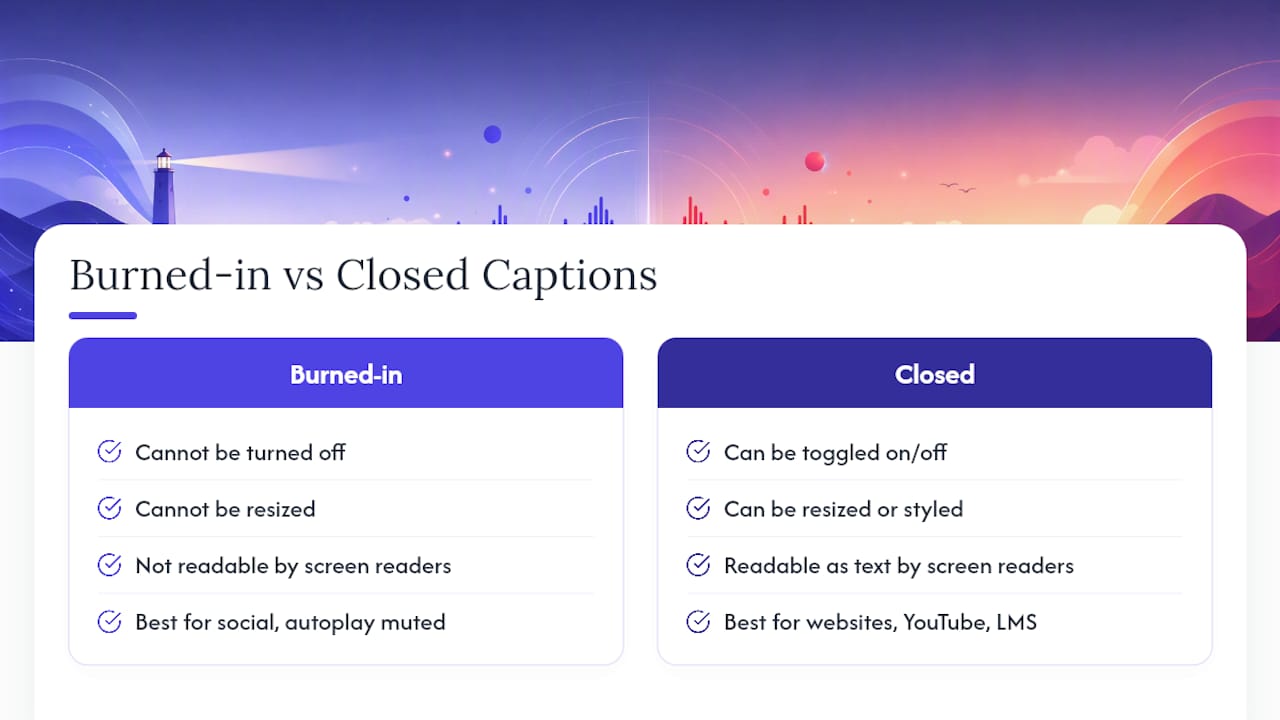
The difference comes down to where the text lives. Burned-in captions are pixels baked into the video during export, permanent and part of the image itself. Closed captions live in a separate file, an SRT or VTT, that a player reads and displays on top of the video, and viewers can turn on or off.
That distinction changes what each format can do:
- Burned-in captions (also called open captions, hardcoded captions, or hardsubs) can't be resized, recolored, or hidden by the viewer.
- Closed captions can be styled by the viewer's device, translated into another language file, and read by screen readers and other assistive technology.
- Video players and assistive tech treat the two completely differently: one is just part of the picture, the other is structured text data the software can parse.
Both terms get used loosely online, but "hardsubs" and "open captions" both mean the same thing as burned-in: text that's fused to the frame.
Why Do Creators Burn Captions Into Their Videos?
Most feeds autoplay without sound, and that single fact drives almost every burned-in caption decision creators make. If your hook depends on someone reading a line of text in the first two seconds, you cannot afford a caption toggle that might be off by default. Burned-in captions display identically everywhere, regardless of which app, browser, or embed is showing the video.
Three scenarios where this matters most:
- Short-form social: TikTok, Reels, and Shorts all reward content that communicates instantly, muted or not.
- Paid ad creative: Cross-posting the same ad across placements means you can't guarantee every platform's native caption system will render your brand's styling.
- Preview clips and internal reviews: Screen recordings and rough cuts shared with a team benefit from guaranteed, unmissable text.
The trade-off is permanence. Once you export, the caption is locked to that file. Change a word and you're re-rendering, not editing a text field. Burned-in also doesn't scale well across languages. Every dubbed or subtitled version needs its own export.
Pro Tip: If you're running the same creative in three languages, burn in the base version last. Keep the SRT translated and ready so you're not re-cutting timing for every language variant.

Do Burned-In Captions Meet Accessibility Standards?
No, not on their own. This is the part creators skip, and it's the part that causes real problems down the line.
Captions exist to give deaf and hard-of-hearing viewers access to speech and meaningful non-speech audio. Most captions should be closed, meaning a viewer can turn them on or off and adjust how they appear. Open captions have a place, but they are not a substitute for accessible, toggleable caption files.
That's the core position from W3C's Web Accessibility Initiative, and it lines up with what accessibility offices at universities and organizations consistently tell content teams. Burned-in captions can't be turned off, resized, or read by a screen reader the way structured caption data can. A viewer with low vision who needs larger text has no way to get it. Someone using a screen reader gets nothing at all from the caption layer, because it's just pixels, not text.
The practical fix isn't complicated: burn captions in for your social-first, autoplay-muted content, but keep a real closed caption file (SRT or VTT) attached to any version distributed through your website, YouTube, LMS, or formal archive. One format for scroll-stopping, one format for compliance. They're not competitors, they're two different jobs.
What's the Best Workflow for Producing Burned-In Captions?
Build your process so a burned-in export is the last step, never the only one.
- Cut and lock your clean master first. No text overlays, no captions. This is your source of truth for every future edit or re-export.
- Generate a draft transcript with automatic speech recognition, then edit it by hand. ASR tools get names, jargon, and background noise wrong often enough that a human pass before burning in is non-negotiable. A tool like Youtube to Transcript or YumiLM's transcription tool works well for pulling a first draft you can clean up.
- Style for mobile readability. Larger font sizes, a semi-transparent background box or a clean outline, and generous line spacing all matter more on a five-inch screen than they do in your edit bay.
- Keep captions inside the safe zone. Center your text and leave margin room. TikTok's like button, Instagram's caption overlay, and LinkedIn's engagement bar all sit in slightly different spots, and any of them can cover your text if you don't account for it.
- Export platform-specific variants and actually preview them on a phone, not just your monitor, before you publish.
Pro Tip: Design your caption safe zone for the tightest platform first. If it clears TikTok's UI, it'll almost always clear the others too.
How Do You Actually Burn Captions Into a Video File?
The process is short once your transcript is locked. Create or export your SRT/VTT file, style it in a caption editor or directly inside your editing software, composite it onto the video at export, then check it on the actual platforms you're posting to.
For tools, most editors already have what they need:
- Premiere Pro and Final Cut Pro both support importing SRT files and burning them into the timeline during export.
- HandBrake handles hardcoding subtitles into an existing video file if you're working from a finished export rather than a raw timeline.
- Online caption services can generate a burned-in MP4 directly from your video and transcript, useful for quick single-video jobs.
- For teams pushing dozens of exports a week, API or CLI-based tools remove the manual click-through entirely.
Before you hit final export, run through a quick checklist: proofread the full transcript one more time, confirm nothing sits in a platform's UI safe zone, and check your resolution and bitrate match what the target platform expects.
What Happens When You Need to Edit or Remove a Caption?
You can't. Not directly. A burned-in caption is part of the video's pixels, so fixing a typo or updating a claim means going back to your clean master and re-exporting.
That's exactly why the clean master and SRT archive matter so much:
- Fix the error in your SRT/VTT file first, since that's your editable source of truth.
- Re-render only the specific platform exports that need the correction, not your entire library.
- Skip burning in captions altogether for content you expect to edit often, anything long-form, or anything going out in multiple languages.
Where do burned-in captions actually fit in a real pipeline?
The honest answer is narrower than most creators think. Burned-in captions solve exactly one problem well: getting your message across on a muted, autoplay feed where a viewer decides whether to keep watching in under two seconds. That's it. Trying to stretch them into your accessibility strategy or your long-form archive is where teams get into trouble, usually discovering the gap only after a compliance review or a translation request lands on their desk.
The fix isn't complicated, it's just a discipline problem. Treat captioning like you'd treat any other release asset: master file, caption file, then platform exports, in that order, every time. Put it on your release checklist so it's not a decision someone makes ad hoc at 11 p.m. before a launch.
— James
Scale Your Captioned Social Exports Without the Re-Editing Headache
Producing a dozen properly captioned, safe-zone-checked variants for every platform eats hours most marketing teams don't have, especially when creative fatigue means you need fresh cuts constantly, not once a quarter.
Jamesyee assigns dedicated virtual assistants to handle exactly this workflow: transcript review, caption styling, platform-specific exports, all while preserving your clean masters so nothing gets locked into a single unfixable file. If you're burning captions into a handful of videos a week and it's eating your schedule, see how the process works and get your next batch of captioned variants moving.
Sources
- Open vs Closed Captioning – University of South Carolina digital accessibility toolbox
- Closed captioning statement – University of Denver accessibility
- Captions/Subtitles – W3C WAI
- Burned-in captions — OpenClip explanation
- How to Add Burned-In Captions to Videos – Rev blog